
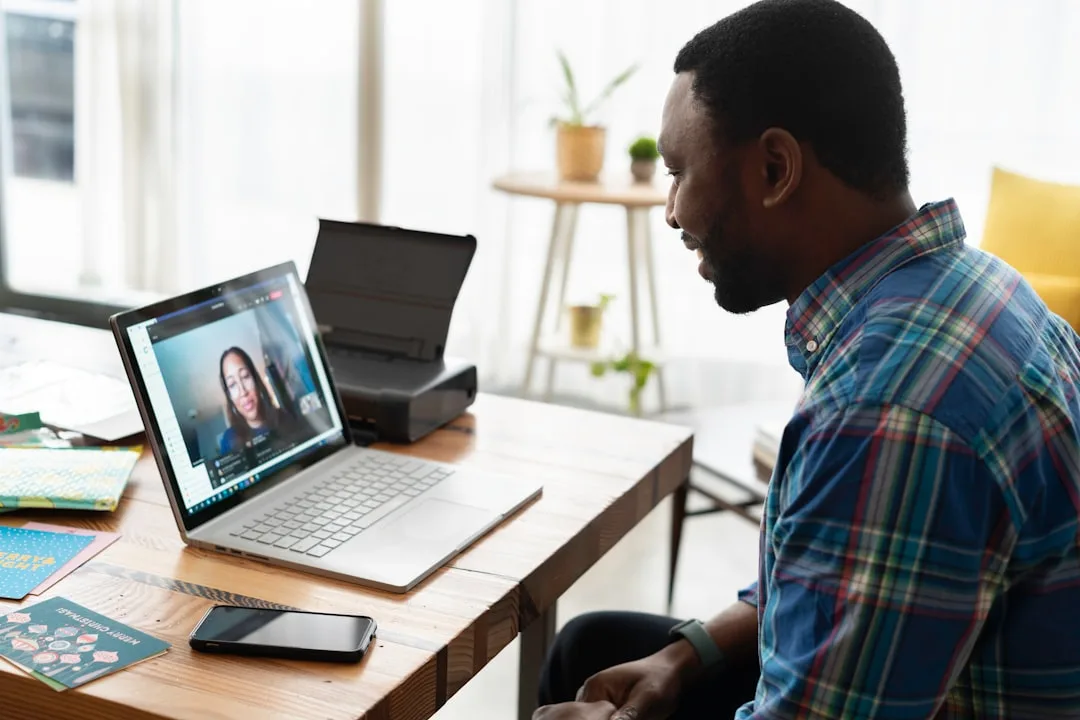
What internet speed do I need for a video interview?
Most platforms have minimum bandwidth requirements well under 1 Mbps, but recommend closer to 1.5-3.2 Mbps upload and download for a smooth HD video experience. Test your speed at the same time of day as your interview and use a wired ethernet connection for reliability. Virtual backgrounds are acceptable on Zoom and Teams but can create visual artifacts around your hair and hands. A clean, neutral physical background is preferable.
Getting an interview for a remote position is only the first hurdle. The second, often underestimated, challenge is making sure your technology does not sabotage the conversation before you say a word. Hiring managers routinely cite technical difficulties as a negative signal in video interviews, not because they are unfair, but because remote work demands technical competence as a baseline skill. If you cannot set up a stable video call for your own interview, the reasoning goes, how will you function on a distributed team?
This guide covers every technical element you need to verify before a video interview, from internet bandwidth and audio quality to lighting, camera angles, and backup plans. It is written for candidates applying to software engineering, IT, DevOps, and other technical roles where employers expect a higher standard of remote readiness.
Internet Connection and Bandwidth
Minimum Requirements
Most video conferencing platforms publish their minimum bandwidth requirements, but candidates rarely check them. Bandwidth - the maximum rate of data transfer across a network connection, measured in megabits per second (Mbps).
| Platform | Minimum Upload | Recommended Upload | Minimum Download | Recommended Download |
|---|---|---|---|---|
| Zoom | 0.6 Mbps | 1.8 Mbps | 0.6 Mbps | 1.8 Mbps |
| Microsoft Teams | 0.5 Mbps | 1.5 Mbps | 0.5 Mbps | 2.5 Mbps |
| Google Meet | 0.3 Mbps | 3.2 Mbps | 0.3 Mbps | 3.2 Mbps |
| Webex | 0.5 Mbps | 2.5 Mbps | 0.5 Mbps | 2.5 Mbps |
These are the numbers for a single HD video call. If anyone else in your household is streaming video, gaming, or running large downloads, your available bandwidth drops accordingly.
Testing Your Connection
- Run a speed test at speedtest.net or fast.com at the same time of day your interview is scheduled. Peak hours matter.
- Run the test three times over 15 minutes to check for fluctuations. Consistency matters more than peak speed.
- If your wireless connection is unreliable, connect your computer directly to the router with an ethernet cable. A $10 USB-to-Ethernet adapter eliminates the single most common source of video call problems.
- Close all background applications that consume bandwidth: cloud sync services like Dropbox, automatic OS updates, streaming music.
Connectivity issues during video calls are a common complaint among remote workers, and wired ethernet connections consistently reduce call quality issues compared to WiFi.
The number one thing that separates a smooth remote interview from a frustrating one is a wired connection. WiFi is a shared medium with unpredictable interference, and candidates often underestimate how much a single microwave or neighboring network can degrade it.
Audio Setup
Audio quality matters more than video quality in interviews. Research by Eryn J. Newman and Norbert Schwarz, published in 2018 in Science Communication, found that poor audio quality made speakers seem less intelligent and less trustworthy to listeners, even when the content was identical. This is the single most impactful technical element to get right.
Microphone Selection
Condenser microphone - a type of microphone that uses an electrically charged diaphragm to capture sound, producing higher fidelity than dynamic microphones but also picking up more ambient noise.
- Built-in laptop microphones are acceptable but not ideal. They pick up keyboard noise, fan noise, and room echo.
- Wired earbuds with an inline microphone (like Apple EarPods or similar) are a significant upgrade for minimal cost.
- A dedicated USB microphone like the Blue Yeti or Audio-Technica ATR2100x provides studio-quality audio, though this is overkill for most interviews.
- Wireless earbuds (AirPods, Galaxy Buds) work well but introduce battery dependency. Charge them fully the night before.
Audio Testing Checklist
- Open your conferencing platform's settings and select the correct input/output device.
- Record a 30-second voice memo and play it back. Listen for echo, background noise, and volume levels.
- Test with a friend on the actual platform (Zoom, Teams, Meet) you will use for the interview. Platform-specific audio processing varies.
- If you hear echo, it usually means your microphone is picking up audio from your speakers. Use headphones to eliminate this.
- Disable system sounds and notification alerts on your computer and phone.
Nick Morgan, a communication coach and author of Can You Hear Me? How to Connect with People in a Virtual World, has written extensively about how audio carries the majority of the communication experience on video calls. People will tolerate pixelated video, but the moment audio cuts out or echoes, trust tends to break down quickly.
Video and Camera
Camera Positioning
The camera should be at eye level. This is the most frequently violated principle in video interviews. When the camera is below eye level (the default laptop position), it creates an unflattering upward angle and makes it appear that you are looking down at the interviewer. A stack of books, a laptop stand, or a monitor riser solves this instantly.
- Position the camera at eye level or slightly above
- Keep the camera approximately an arm's length from your face
- Center yourself in the frame with your head in the upper third
- Leave a small amount of headroom above your head
Lighting
Three-point lighting - a standard lighting technique using a key light (main), fill light (shadow reduction), and back light (separation from background), commonly adapted for video calls using natural light and desk lamps.
Natural light from a window in front of you is the simplest solution. The window should be behind or beside the camera, not behind you. Backlighting turns you into a silhouette.
If natural light is not available or not consistent:
- A ring light ($20-40) provides even, flattering illumination
- A desk lamp positioned behind and above the camera works as a key light
- Avoid overhead fluorescent lighting as the sole source, which creates harsh shadows under eyes
Jeff Su, a career and productivity content creator known for his video guides on remote work and interview preparation, has made a similar point in his content: the difference between a modestly priced ring light and no dedicated lighting at all is enormous on camera, and it is one of the cheapest upgrades that makes the biggest visual difference.
Background
- A clean, neutral background is ideal. A plain wall, a bookshelf, or a tidy room.
- Virtual backgrounds are acceptable on Zoom and Teams but require a solid-color physical background or a green screen to avoid visual artifacts around hair and moving hands.
- Avoid windows behind you, busy patterns, and anything that could be distracting or unprofessional.
Software and Platform Preparation
Platform-Specific Setup
Different companies use different platforms. Do not assume you know how they all work.
| Task | Zoom | Microsoft Teams | Google Meet |
|---|---|---|---|
| Account required? | No (as participant) | No (browser join) | Google account helps |
| Desktop app needed? | Recommended | Recommended | Browser-based |
| Browser support | Chrome, Edge, Firefox | Chrome, Edge | Chrome, Edge |
| Test call feature | zoom.us/test | In settings | No built-in |
| Screen sharing | Built-in | Built-in | Built-in |
- Install the desktop application for the platform being used. Browser-based access works but desktop apps have more reliable screen sharing and audio routing.
- Update the application to the latest version at least 24 hours before the interview. Updates during the call are not recoverable.
- Test screen sharing if the role involves a coding exercise or technical presentation.
- Set your display name to your real, professional name.
- Verify your profile photo is professional or remove it.
System Settings
Notification fatigue - the desensitization caused by excessive digital notifications, which in an interview context becomes an embarrassment risk when personal messages or alerts appear on a shared screen.
- Enable Do Not Disturb on your operating system (Windows Focus Assist, macOS Focus Mode)
- Close all messaging applications: Slack, Discord, WhatsApp Desktop, iMessage
- Close email clients and browser tabs with notifications
- Disable browser notification permissions for social media sites
- On Windows, press
Win + Ito open Settings, then System, then Notifications to manage per-app settings - On macOS, use
System Settings > Focus > Do Not Disturb
Hardware Backup Plan
Technology fails. The question is not whether something will go wrong, but whether you have a plan when it does. Having a documented backup plan and communicating it proactively demonstrates exactly the kind of reliability remote employers look for.
What to Prepare
- Phone as backup device: Install the interview platform on your phone. Test that it works with your phone's camera and microphone. If your computer fails, you can join from your phone within 60 seconds.
- Mobile hotspot: If your home internet goes down, a phone hotspot with 4G/5G can sustain a video call. Test this in advance. Most carriers throttle hotspot bandwidth, so verify you get at least 2 Mbps upload.
- Charger accessible: Plug in your laptop. A dead battery during an interview is entirely preventable.
- Secondary audio: Keep wired earbuds as backup if wireless earbuds fail or die mid-call.
The Email Template
Send this to your interviewer 30 minutes before the call if you want to appear exceptionally prepared:
"Looking forward to our conversation at [time]. I have tested my audio and video setup. In the unlikely event of a technical issue, my backup plan is to rejoin from my mobile device. My phone number is [number] if you need to reach me directly."
Companies that have conducted large volumes of remote interviews since 2020, including Amazon, commonly include backup instructions in their interview confirmation emails. Proactively communicating a backup plan signals the kind of ownership and preparedness that interviewers tend to value, regardless of whether any technical issue actually occurs.
Environment and Physical Setup
Room Selection
- Choose a room with a door you can close. Background interruptions are distracting for both parties.
- Inform household members of the interview time. A Post-it note on the door works.
- Avoid rooms with hard surfaces and no soft furnishings. They create echo. A bedroom or carpeted office is better than a kitchen or bathroom.
- If you live in a noisy area near a busy road or construction, consider the time of day and whether noise peaks overlap with your interview slot.
- Test the room acoustics by clapping once. If you hear a noticeable reverb, the room will produce echo on calls. Adding a blanket over a hard surface or closing curtains can reduce this substantially.
Ergonomics and Appearance
- Sit in a proper chair at a desk. Couches and beds read as casual even when the camera only shows your upper body.
- Dress professionally from the waist up at minimum. Fully dressing in interview-appropriate clothing changes your posture and mental state. Research by Hajo Adam and Adam D. Galinsky at Northwestern University on enclothed cognition found that what you wear directly affects your psychological processes and performance.
- Keep a glass of water within reach but off-camera.
- Have a notepad and pen ready for taking notes. This signals engagement.
- Position your resume and any notes slightly below the camera so that glancing at them looks natural rather than reading from a side monitor.
Hiring managers consistently report that a candidate's video interview setup directly influences their impression of the candidate's professionalism, and this effect tends to be even more pronounced among technical hiring managers specifically.
Dealing with Pets and Children
Remote interviews from home mean dealing with unpredictable interruptions. The widely shared BBC interview incident where Professor Robert Kelly's children walked into frame during a live broadcast became a cultural moment, but in a job interview, unmanaged interruptions signal a lack of preparation rather than relatability.
- Arrange childcare or supervision for the duration of the interview plus a 30-minute buffer
- Put pets in a separate room with food and water so they are less likely to vocalize
- Lock the door rather than simply closing it if you have pets that can push doors open
- If an interruption does happen, handle it quickly and with composure. Acknowledge it briefly, mute if needed, resolve it, and return your focus to the conversation
The 30-Minute Pre-Interview Checklist
Use this checklist exactly 30 minutes before your interview starts:
- Restart your computer to clear memory and close background processes
- Open the conferencing application and verify the camera and microphone are working
- Run a quick speed test to confirm bandwidth
- Close all unnecessary applications and browser tabs
- Enable Do Not Disturb on your computer and silence your phone
- Check lighting and camera angle one final time
- Verify your display name and profile photo in the platform
- Open any documents you might need (resume, job description, notes) in separate windows
- Pour a glass of water
- Join the meeting link 2-3 minutes early
Latency - the time delay between sending and receiving data over a network, measured in milliseconds. High latency causes that awkward conversational overlap where both people start talking simultaneously.
If your speed test shows latency above 150ms, consider turning off your camera during portions of the interview to reduce bandwidth demand, or switching to your wired connection.
Common Failure Modes and Recovery
| Problem | Immediate Fix | Prevention |
|---|---|---|
| Audio echo | Mute, switch to headphones, rejoin | Always use headphones |
| Frozen video | Turn camera off/on, reduce resolution | Use wired internet |
| Cannot hear interviewer | Check output device in settings, rejoin | Test audio before call |
| Screen share not working | Grant permission in system settings | Test share beforehand |
| Internet drops | Switch to phone hotspot, rejoin | Have hotspot ready |
| Background noise | Mute when not speaking, close windows | Choose a quiet room |
The key recovery principle: communicate immediately. Say "I apologize, I am experiencing a technical issue. Let me switch to my backup setup. I will rejoin in about 60 seconds." Silence during a technical failure is far worse than a brief, professional explanation.
Interviewers often rate candidates who handle technical difficulties calmly and communicate proactively as more resilient than candidates who happened to have zero issues. The way you handle problems is itself a data point.
Platform-Specific Troubleshooting
Each platform has quirks that can catch candidates off guard during critical moments:
- Zoom: If your audio stops working after joining, check whether the app defaulted to "Phone Audio" instead of "Computer Audio." Click the up-arrow next to the microphone icon and select the correct device.
- Microsoft Teams: Teams sometimes requires you to grant browser permissions separately from desktop app permissions. If screen sharing fails in the browser version, switch to the desktop app where permissions are handled at the OS level.
- Google Meet: Meet runs entirely in the browser and is sensitive to browser extensions. Ad blockers and privacy extensions occasionally interfere with media streams. Test with extensions disabled if you experience issues.
- Webex: Webex meetings sometimes require a meeting number in addition to the join link. Save both from the invitation email so you have a fallback entry method.
For coding interviews conducted over platforms like CoderPad, HackerRank, or LeetCode, verify that your browser supports the embedded code editor. Chrome and Edge provide the most consistent experience. Firefox occasionally has rendering issues with collaborative editing features. Test the coding environment link in advance if the recruiter provides a practice URL.
Time Zone and Scheduling Considerations
Remote interviews frequently cross time zones, and scheduling errors are more common than most candidates realize. A meaningful share of remote interview no-shows are caused by time zone confusion rather than candidate disinterest.
UTC offset - the difference in hours and minutes between a given time zone and Coordinated Universal Time (UTC), used as the standard reference for scheduling across regions.
When you receive an interview invitation:
- Confirm the time zone explicitly in your reply. Do not assume the time listed matches your local time.
- Convert the interview time to your local zone using a reliable tool such as worldtimebuddy.com or the built-in calendar app on your device.
- Set two calendar reminders: one 24 hours before and one 60 minutes before the interview.
- If the interview is scheduled across a daylight saving time transition (common in March and November), double-check that your calendar app has adjusted correctly. Some platforms handle DST transitions inconsistently, particularly when the interviewer and candidate observe DST on different dates.
- If the company is based in a different country, verify which time zone abbreviation they are using. "PST" and "PT" are sometimes used interchangeably, but PST (UTC-8) and PDT (UTC-7) differ by one hour.
For roles at companies like GitLab, which operates as an all-remote organization across more than 60 countries, interviewers expect candidates to demonstrate time zone awareness as a fundamental remote work competency. Confirming the time zone proactively in a scheduling reply is generally noted positively at remote-first companies like this.
See also: Remote work communication skills, Technical interview preparation for software roles, Home office setup for remote professionals
References
- Newman, Eryn J. and Schwarz, Norbert. "Good Sound, Good Research: How Audio Quality Influences Perceptions of the Research and Researcher." Science Communication, Vol. 40, Issue 2, 2018.
- Morgan, Nick. Can You Hear Me? How to Connect with People in a Virtual World. Harvard Business Review Press, 2018.
- Adam, Hajo and Galinsky, Adam D. "Enclothed Cognition." Journal of Experimental Social Psychology, Vol. 48, Issue 4, 2012.
Frequently Asked Questions
What internet speed do I need for a video interview?
Most platforms require at least 1.5-2 Mbps upload and download for HD video. Test your speed at the same time of day as your interview and use a wired ethernet connection for reliability.
Should I use a virtual background for my video interview?
Virtual backgrounds are acceptable on Zoom and Teams but can create visual artifacts around your hair and hands. A clean, neutral physical background is preferable. If you use a virtual background, test it in advance.
What should I do if my internet drops during a video interview?
Switch to your phone’s mobile hotspot and rejoin from your phone or laptop. Communicate immediately with the interviewer about the issue. Having a backup plan prepared in advance shows professionalism and remote work readiness.